Add the charger in Gundro
Open Sites, then choose Set up a private charger or Add charger. Give it a name and select Generate charger settings.
OCPP charger setup
OCPP is the communication standard your charger uses to send status, session, and meter data to Gundro.
Through OCPP, the charger tells Gundro when it is online, whether it is available, when a charging session starts or stops, and how much energy is delivered. Gundro can then show that information in the app and send supported commands back to the charger.
To use Gundro, your EV charger must support OCPP and be connected to the internet.
The charger makes an outgoing internet connection to Gundro and keeps that connection open using a secure WebSocket.
Look in the product specification, installer manual, or charger admin panel. Your charger needs all of the following:
Gundro cannot add OCPP support to a charger through the app alone. Ask the manufacturer whether your model and firmware support a custom OCPP backend.
Some chargers can use only one charging platform at a time. Check the manufacturer’s instructions or ask your installer before changing the OCPP server, especially if the charger is managed under a service contract.
The menu names differ by manufacturer, but the setup always uses the values generated for your charger in Gundro.
Open Sites, then choose Set up a private charger or Add charger. Give it a name and select Generate charger settings.
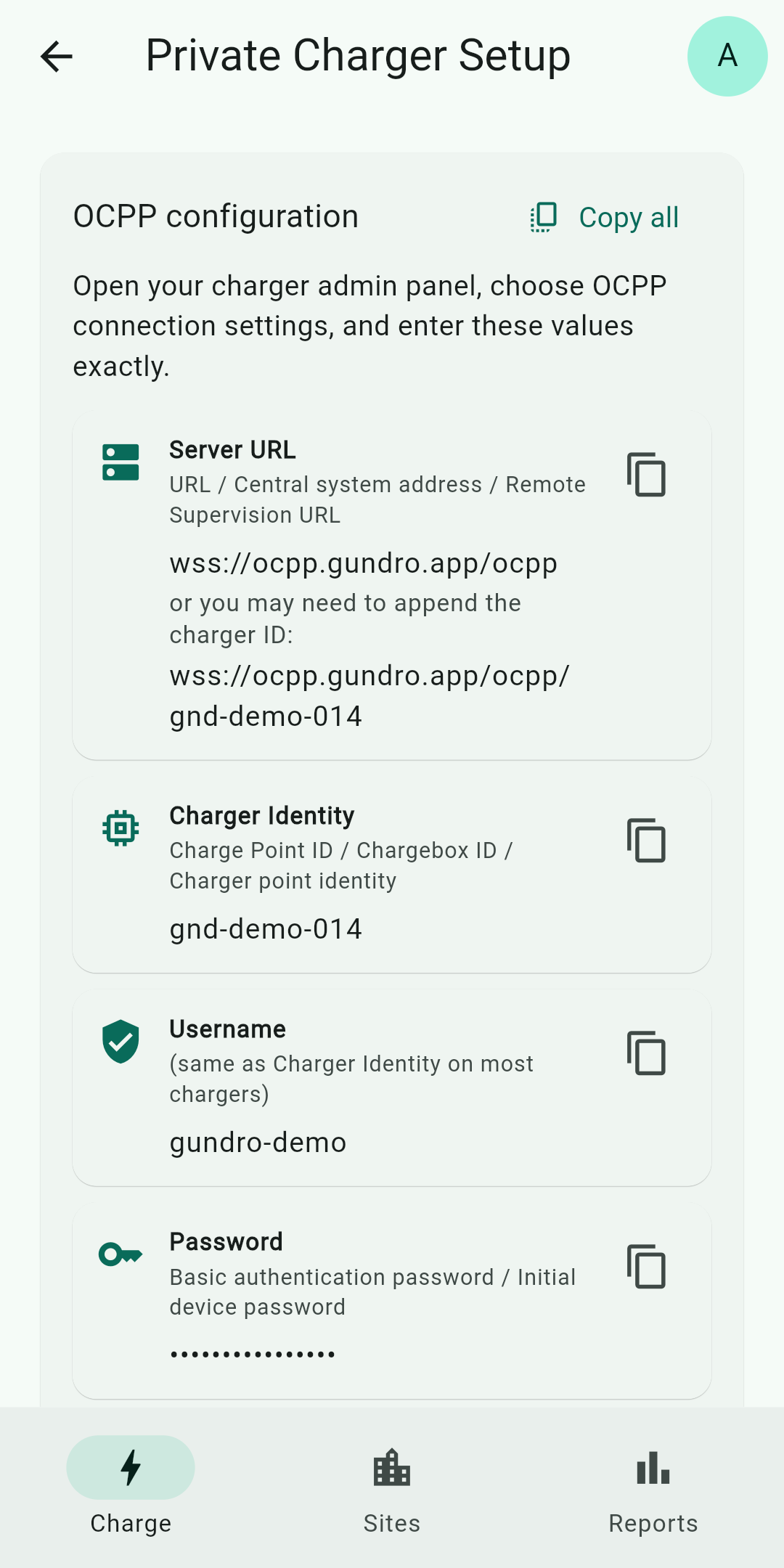
Gundro shows the server URL, charger identity, username, password, and protocol. Use Copy all or copy each value separately.
Look for OCPP, Backend, Central system, or Remote supervision. Use the manufacturer’s manual if you cannot find it.
Copy the values issued by Gundro. They are charger credentials—not your Gundro email and password—and they are case-sensitive.
Enable OCPP if the charger has a separate switch. Save the settings, then restart or reconnect the charger so it makes a new connection attempt.
Return to the charger setup screen and watch Charger connection. Charging and sharing become available after Gundro receives the charger’s successful OCPP registration.
Manufacturers use different labels for the same connection settings.
Gundro creates a unique server address, Charger Identity, username, and password. These are device credentials. Do not replace them with your charger serial number or your Gundro account details unless the app explicitly shows that value.
You can copy every setting at once or copy the fields one by one.
| Gundro | Your charger may call it | What to enter |
|---|---|---|
| Server URL | URL, Central system address, Backend URL, Remote Supervision URL | The server address shown in Gundro |
| Charger Identity | Charge Point ID, Chargebox ID, Charger point identity | The generated charger identity |
| Username | Basic authentication username, User | The generated username |
| Password | Basic authentication password, Initial device password | The generated charger password |
| Protocol | OCPP version, Protocol version | The version shown in Gundro; select JSON, not SOAP |
Gundro shows a base URL and a second URL with the Charger Identity appended. If your charger has a separate identity field and appends it automatically, use the base URL. If its manual requires the identity at the end of the server URL, use the complete URL. Do not append the identity twice.
Only enter it in the charger’s trusted admin interface. Do not send it in screenshots, support messages, or public posts.
Download Gundro, add your charger, and use the generated settings in its admin panel.